The planning of a trip can be a complex process. You might need to add or delete items from an itinerary from time to time. Follow these steps to re-sort the itinerary in the ZestFi Ultimate Travel Organizer by date and time so it appears in chronological order.
Step #1
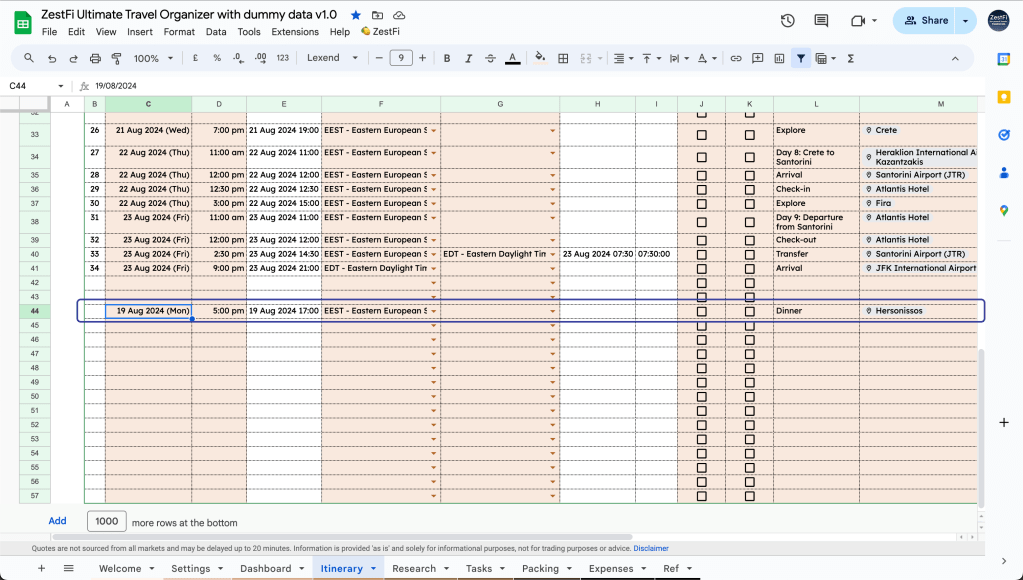
Let’s say you’ve just added an item in the table but now the itinerary is not arranged in chronological order.
Step #2
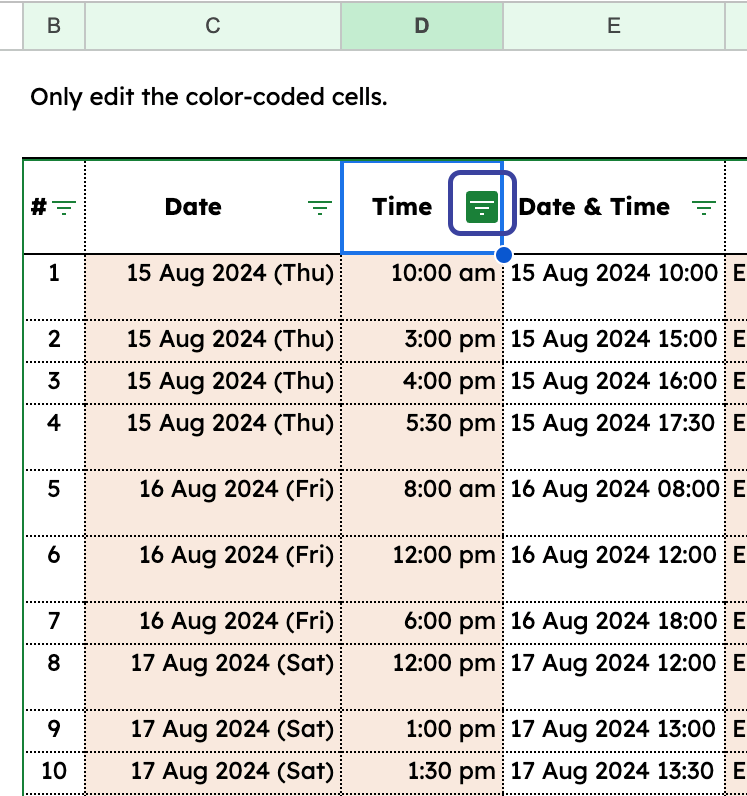
Simply go to the Time column and click the filter button.
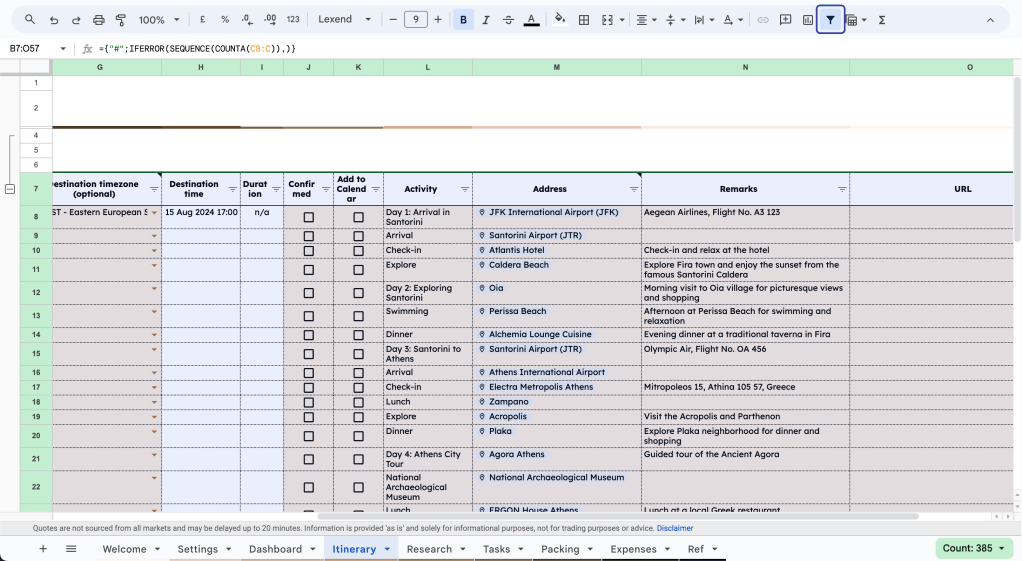
The filter should be applied to the table by default. If not, select the range B7:O and apply the filter view.
Step #3
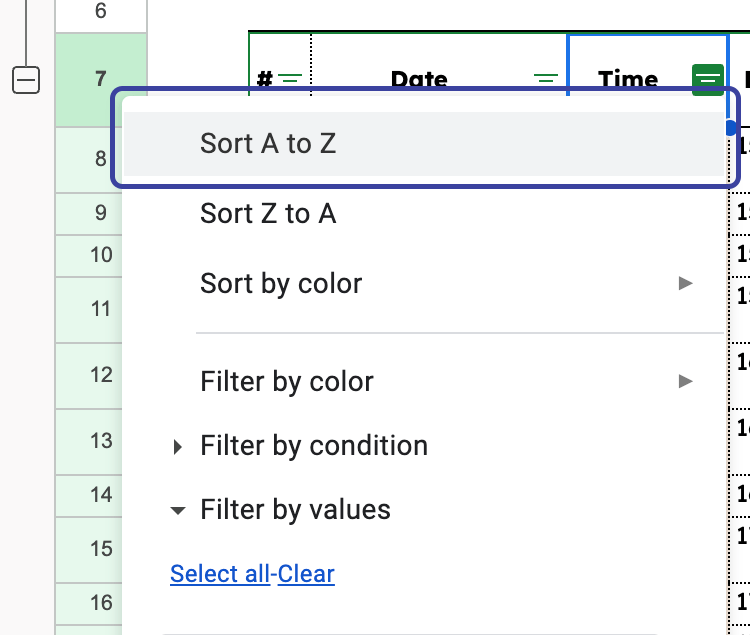
Select “Sort A to Z”.
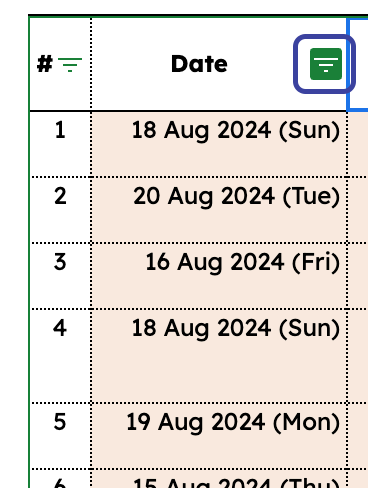
Step #4
Go to the Date column and click the filter button.
Step #5
Select “Sort A to Z”.
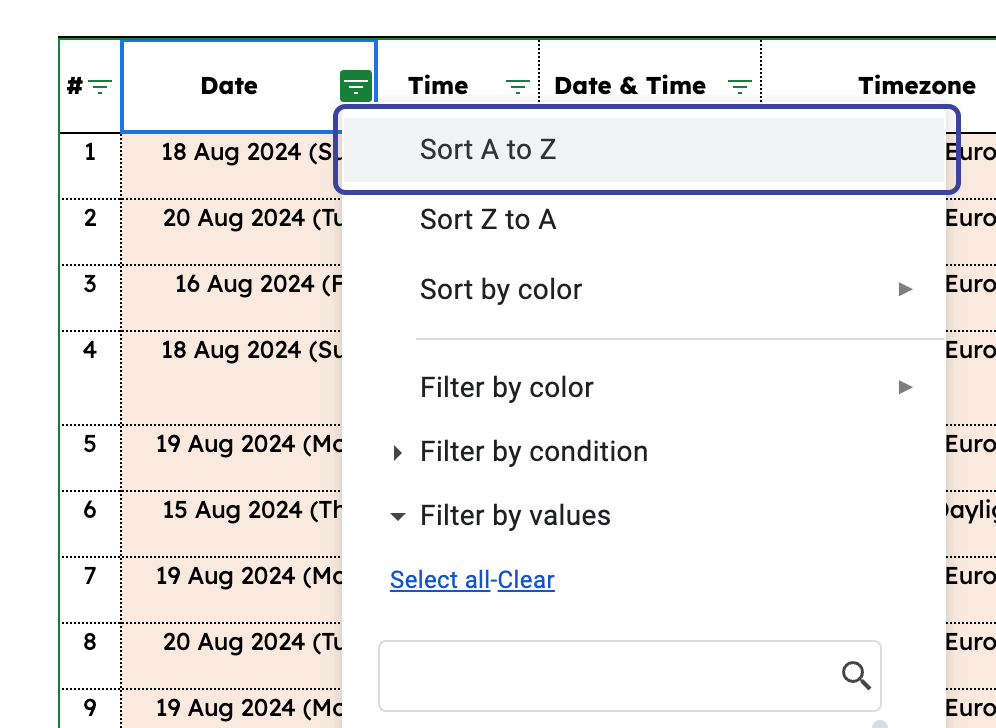
Now the table is arranged in chronological order, so is the Dashboard!
Need help? Reach me @
- Official site: zestfi.io
- Gumroad: zestfi.gumroad.com
- Twitter/X: x.com/joshuaZestFi
- Email: admin@zestfi.io
 ZestFi