Follow these steps to set up the ZestFi Ultimate Travel Organizer to send task reminder emails. You only have to do this once!
Step #1
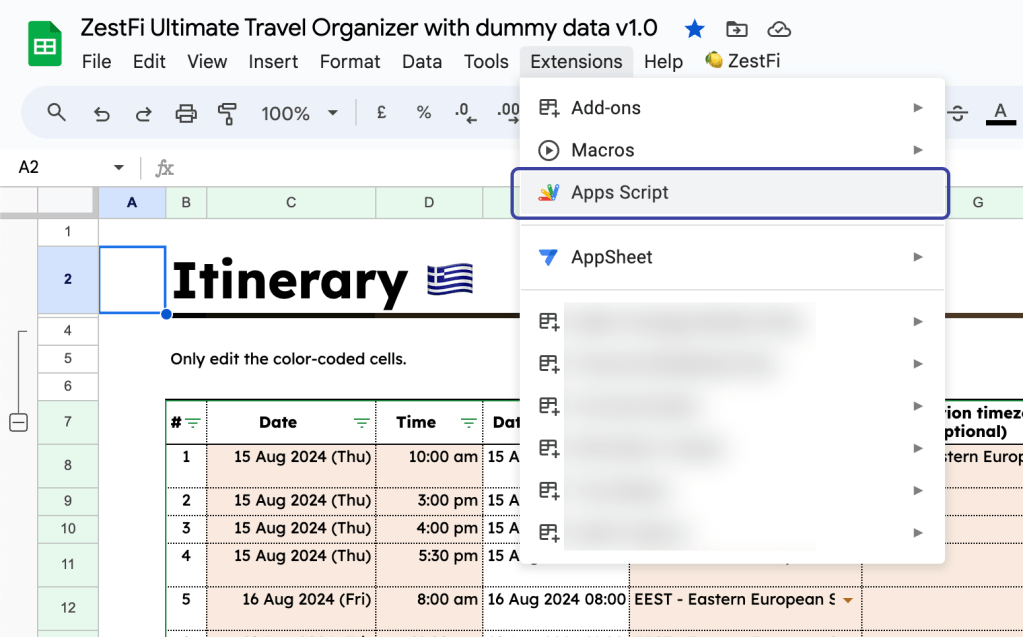
In the menu, go to Extensions > Apps Script
Step #2
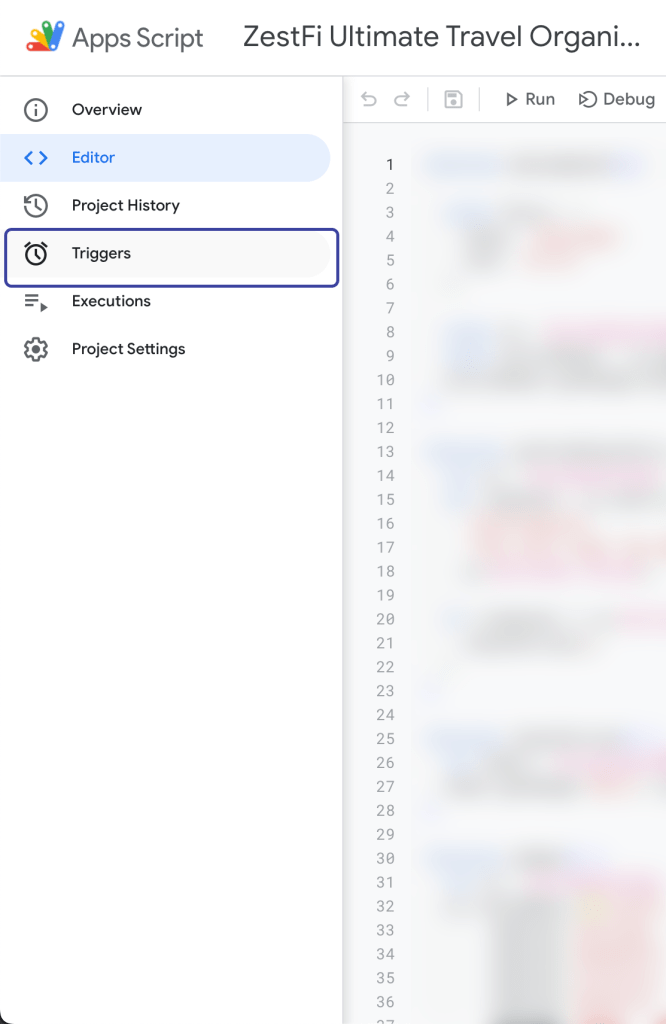
A new window will open. Go to the menu on the left, and click on Triggers.
Step #3
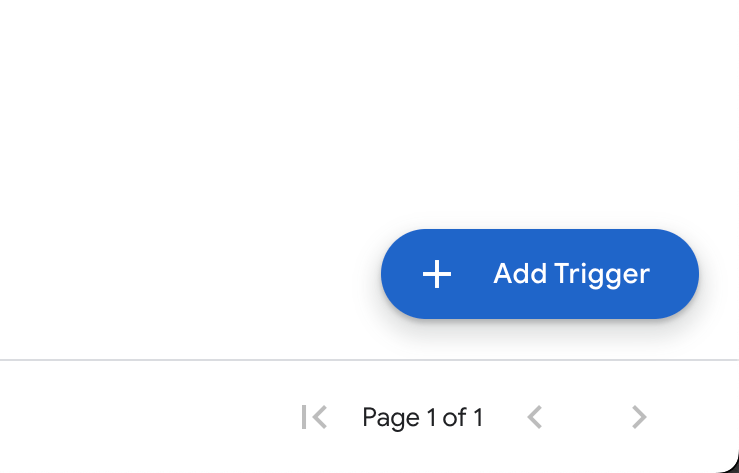
On the bottom right corner, click on “Add Trigger”.
Step #4
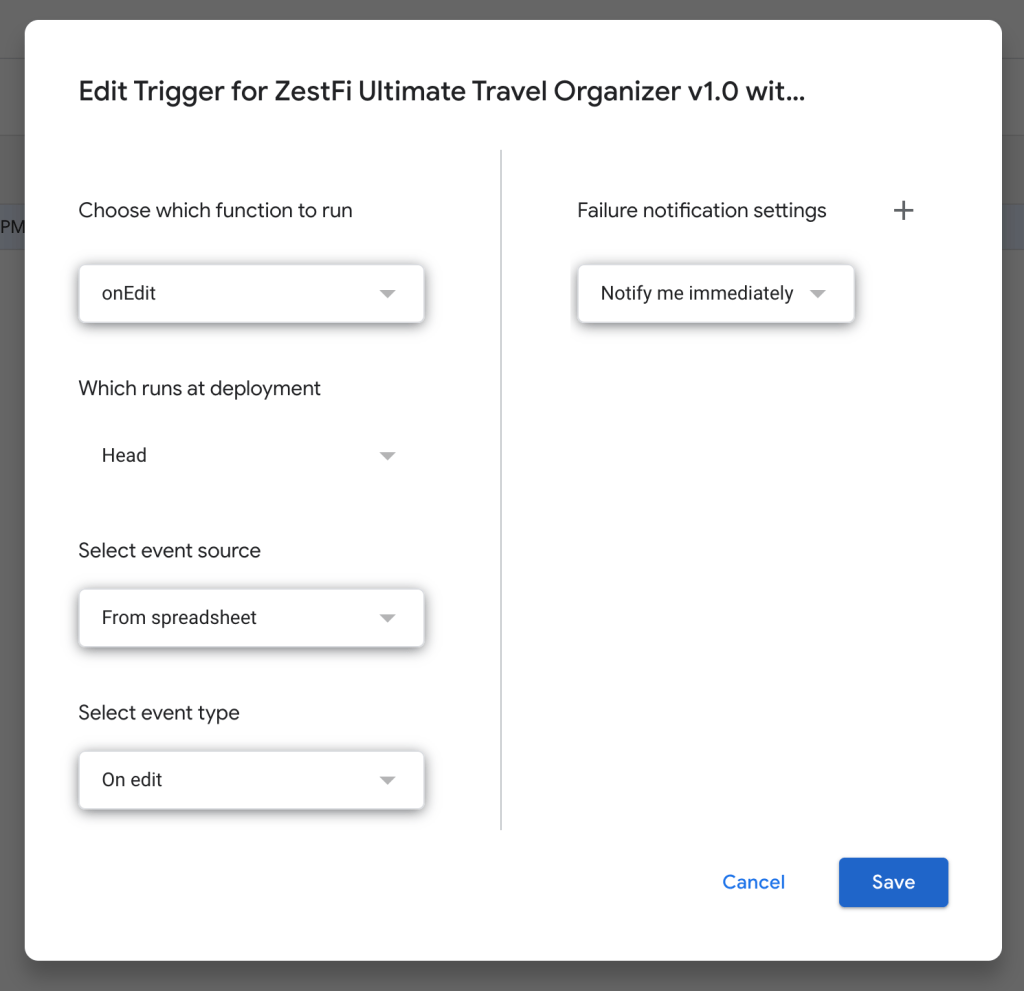
Select the options as below. Then click “Save”.
Step #5
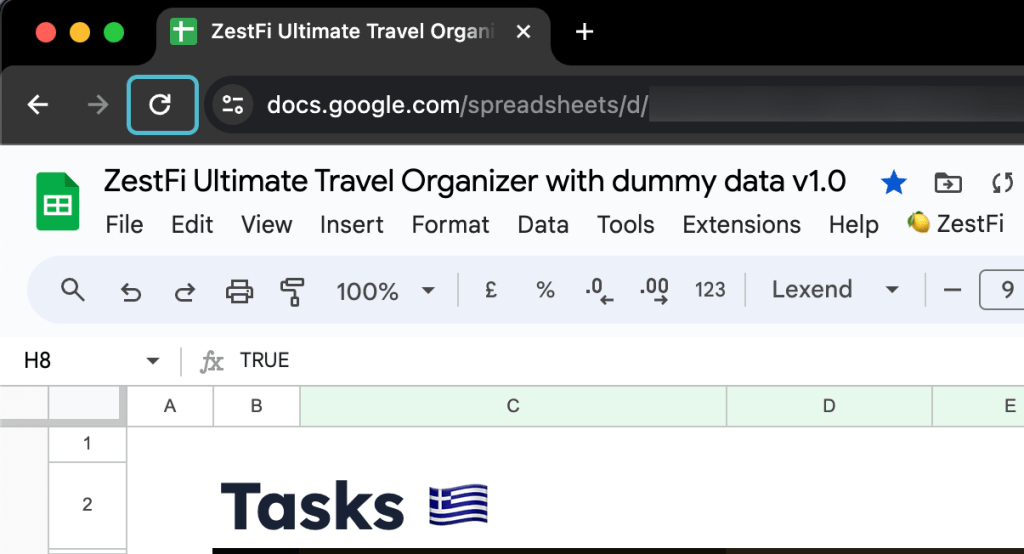
Close the script window. Refresh the template page.
Step #6
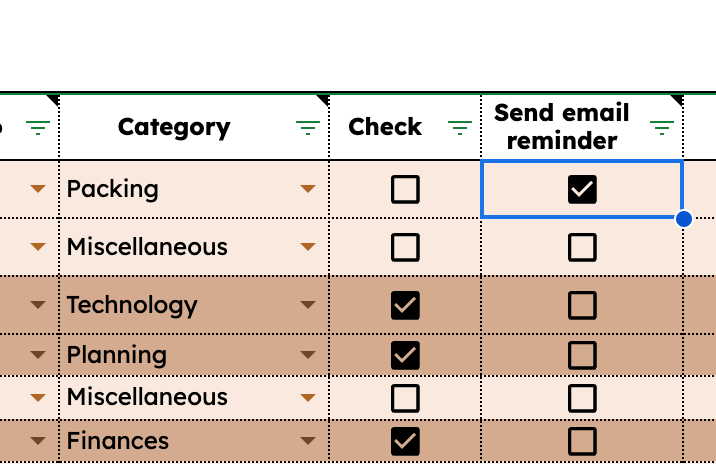
Go to the “Tasks” tab and check a box for a task.
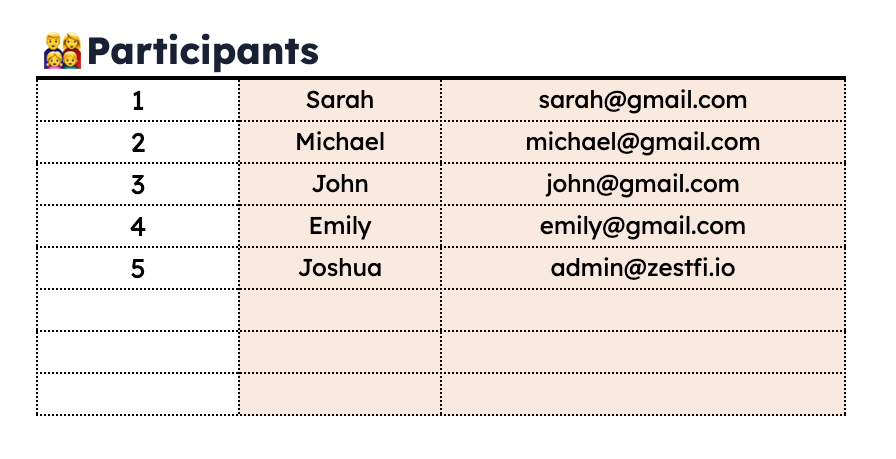
For this to work, make sure you have typed in the names of the participants and their respective emails in the “Settings” tab.
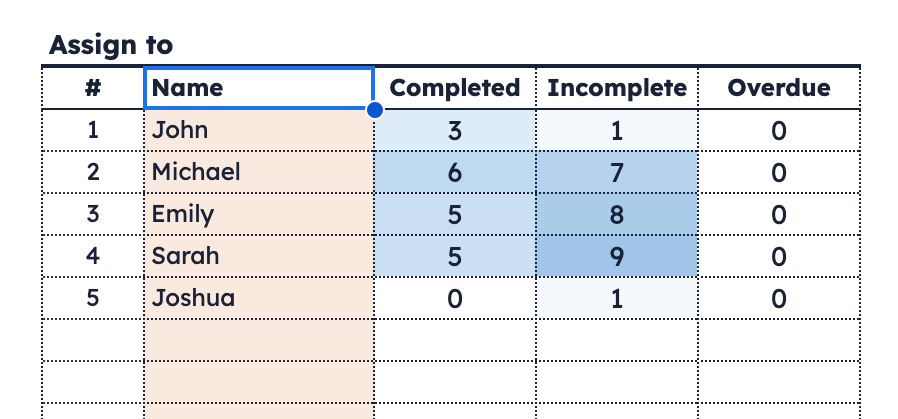
Also make sure the person’s name is in the “Assign to” table in the “Tasks” tab. (cell L37)
Step #7
Once the checkbox is clicked, the email will be sent. You will see a pop-up window as confirmation.

Step #8
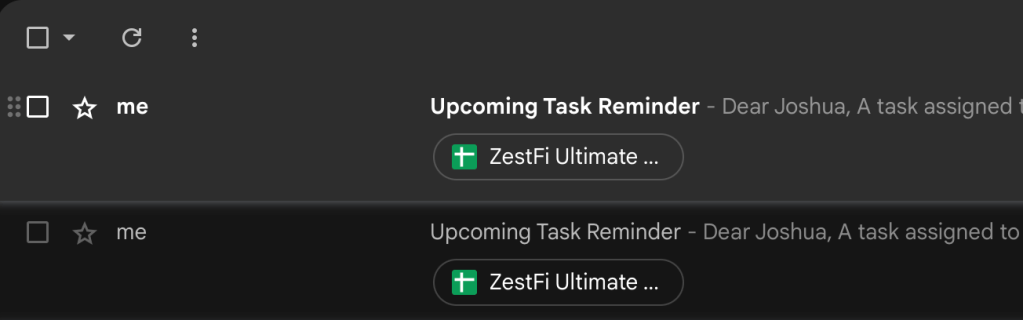
Here is what the recipient sees in his/her inbox.
Step #9
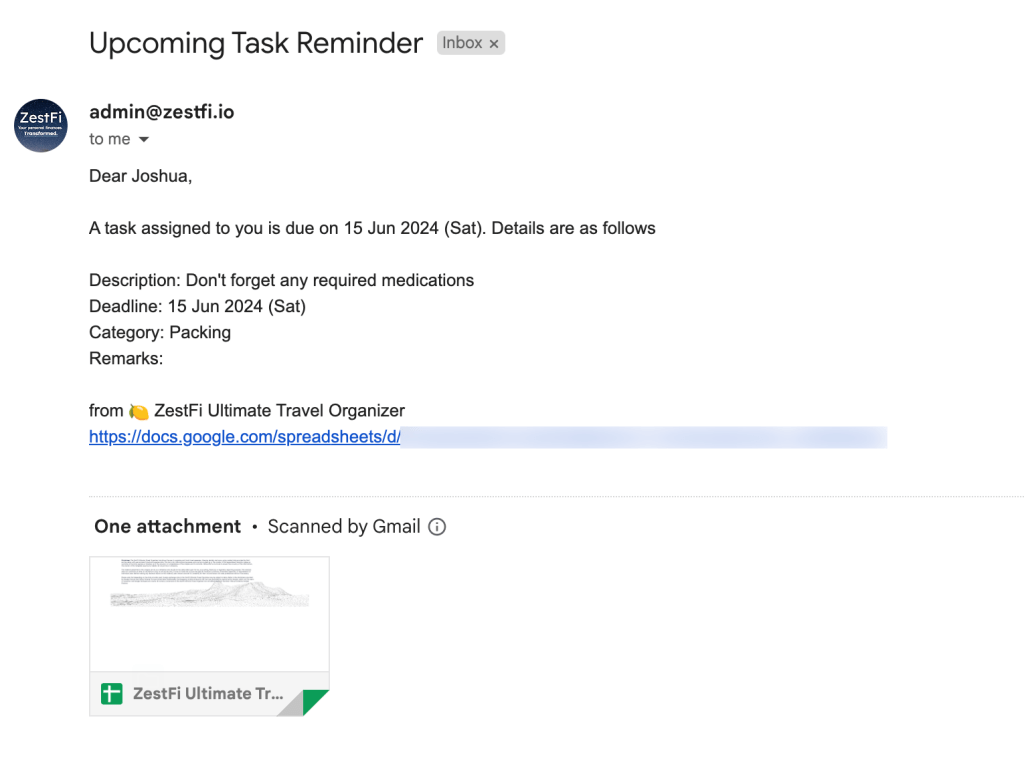
Here is what the content of the email look like.
Need help? Reach me @
- Official site: zestfi.io
- Gumroad: zestfi.gumroad.com
- Twitter/X: x.com/joshuaZestFi
- Email: admin@zestfi.io
 ZestFi